> For the complete documentation index, see [llms.txt](https://docs.causalchamber.ai/llms.txt). Markdown versions of documentation pages are available by appending `.md` to page URLs; this page is available as [Markdown](https://docs.causalchamber.ai/remote-lab/running-a-real-time-experiment.md).
# Running a real-time experiment
You can open a real-time connection to a chamber and use it to send instructions and collect data. This is particularly suited for situations that require interaction, e.g., to test active learning, experiment design, or control algorithms—learn more in our [case studies](https://docs.causalchamber.ai/case-studies/).
### Basic workflow
You can find a [complete example](#a-complete-example) below.
{% stepper %}
{% step %}
**Open a real-time connection to a chamber**
Begin by opening a connection to a chamber—specified by its `chamber_id`—and loading a hardware [configuration](/the-chambers/how-they-work.md#hardware-configurations) (given by `config`). The chamber will reset and set all inputs and sensor parameters to their [default values](/the-chambers/how-they-work.md#hardware-configurations).
{% tabs %}
{% tab title="Credentials file" %}
If you stored your credentials in a [file](/remote-lab/quickstart.md#set-up-your-credentials)
```python
import causalchamber.lab as lab
chamber = lab.Chamber(chamber_id, config, credentials_file = 'path/to/file')
```
{% endtab %}
{% tab title="Environment variables" %}
If you stored your credentials in environment variables, e.g., `USER` and `KEY`
```python
import os
import causalchamber.lab as lab
chamber = lab.Chamber(chamber_id, config, credentials=(os.getenv('USER'), os.getenv('KEY')))
```
{% endtab %}
{% endtabs %}
{% endstep %}
{% step %}
**Send instructions and receive data**
You can now send instructions to the chamber and receive data in real time. There are three types of [instructions](/the-chambers/how-they-work.md#chamber-control-language).
{% tabs %}
{% tab title="SET instruction" %}
{% code fullWidth="true" %}
```python
chamber.set(target, value)
```
{% endcode %}
This sets the variable `target` to the given `value`, returning when the change has been made in the hardware. The above call returns `None`.
See the [configuration docs](/the-chambers/how-they-work.md) for a list of variables and their valid / default values.
{% endtab %}
{% tab title="MEASURE instruction" %}
```python
data = chamber.measure(n, delay)
```
The chamber returns `n` successive measurements of all variables, including images if it produces them. Setting `delay` (in milliseconds) adds an additional delay between measurements, i.e., allowing you to change the measurement frequency.
If the chamber produces images, `data = (dataframe, images)` is a tuple of a pandas dataframe and an image array; otherwise it is just a pandas dataframe. See the [API Reference](broken://spaces/n3swfeDaIv3d3HxHu2q6) for more details.
{% endtab %}
{% tab title="WAIT instruction" %}
```python
chamber.wait(milliseconds)
```
The chamber acts as a precise clock and waits the given `milliseconds` before executing the next instruction.
{% endtab %}
{% endtabs %}
{% endstep %}
{% endstepper %}
{% hint style="info" %}
To ensure experimental consistency, the chamber accepts only one active connection at a time; starting a new connection will invalidate the previous one. For long-running experiments and multiple users, we recommend using the [experiment queue](/remote-lab/using-the-experiment-queue.md).
{% endhint %}
### A complete example
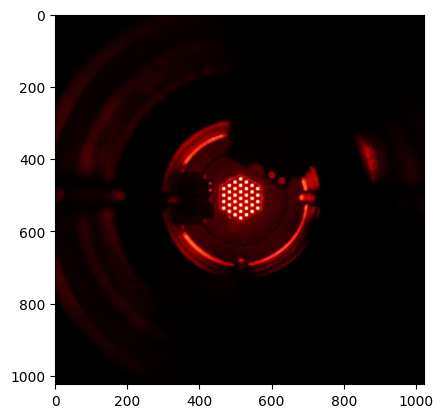
Let's connect to a [Light Tunnel Mk2](/the-chambers/light-tunnel-mk2.md) and collect images in real time.
```python
import causalchamber.lab as lab
# Open a real-time connection
chamber = lab.Chamber(chamber_id = 'lt-demo-ch4lu',
config = 'camera_fast',
credentials_file = '.credentials')
# Turn on the light source to red and take one image
chamber.set('red', 255)
df, images = chamber.measure(n=1)
```
The returned data consists of two parts: `df` is a dataframe containing the sensor measurements, and `images` an array with the collected images (only one in this case).
Let's have a look at the resulting image.
```python
# Plot the image
import matplotlib.pyplot as plt
plt.imshow(images[0])
```
### Submitting multiple instructions at once
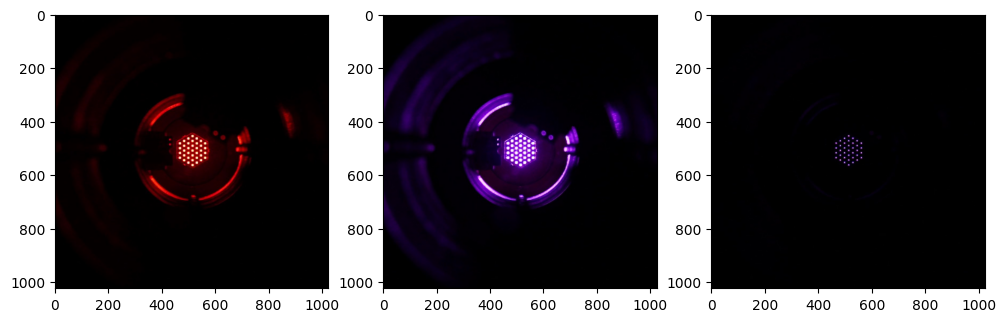
You can submit multiple instructions in a single batch. This saves you the round-trip to the chamber for each instruction and ensures consistent timing between instructions.
The data produced during the execution of the batch will be returned in `batch.submit()`.
```python
# Start a new batch
batch = chamber.new_batch()
# Add instructions
batch.set('red', 128)
batch.measure(n=1) # Image 1: red
batch.set('blue', 128)
batch.measure(n=1) # Image 2: purple
batch.set('pol_1', 90)
batch.measure(n=1) # Image 3: purple + crossed polarizers
# Submit the batch and receive the data
df, images = batch.submit()
```
To plot the resulting images:
# Plot the images
plt.figure(figsize=(9,3))
for i,im in enumerate(images):
    plt.subplot(1,3,i+1)
    plt.imshow(im)