> For the complete documentation index, see [llms.txt](https://docs.causalchamber.ai/llms.txt). Markdown versions of documentation pages are available by appending `.md` to page URLs; this page is available as [Markdown](https://docs.causalchamber.ai/remote-lab/using-the-experiment-queue.md).
# Using the experiment queue
We recommend using the queue for long-running experiments that require no interaction.
The queue works like a compute cluster: you submit an experiment protocol, the chamber runs it when ready, and it uploads the data to a server for you to download.
{% hint style="info" %}
We store your experimental data for the entire duration of your contract.
{% endhint %}
### Basic workflow
The API is very similar to that of the [real-time experiments](/remote-lab/running-a-real-time-experiment.md). You can find a [complete example](#a-complete-example) below.
{% stepper %}
{% step %}
**Connect to the Remote Lab**
First, open a connection to the remote lab (see also [Quickstart](/remote-lab/quickstart.md))
{% tabs %}
{% tab title="Credentials file" %}
```python
import causalchamber.lab as lab
rlab = lab.Lab(credentials_file = 'path/to/file')
```
{% endtab %}
{% tab title="Environment variables" %}
If you stored your credentials in environment variables, e.g., `USER` and `KEY`
```python
import os
import causalchamber.lab as lab
rlab = lab.Lab(credentials=(os.getenv('USER'), os.getenv('KEY')))
```
{% endtab %}
{% endtabs %}
{% endstep %}
{% step %}
**Create a new experiment protocol**
Then, start a new protocol by specifying which chamber (`chamber_id`) and [hardware configuration](/the-chambers/how-they-work.md) (`config`) you want it to run on
```python
experiment = rlab.new_experiment(chamber_id, config)
```
{% endstep %}
{% step %}
**Add instructions**
Add instructions to the experiment protocol
{% tabs %}
{% tab title="SET instruction" %}
{% code fullWidth="true" %}
```python
experiment.set(target, value)
```
{% endcode %}
This sets the variable `target` to the given `value`, returning when the change has been made in the hardware. The above call returns `None`.
See the [configuration docs](/the-chambers/how-they-work.md) for a list of variables and their valid / default values.
{% endtab %}
{% tab title="MEASURE instruction" %}
```python
experiment.measure(n, delay)
```
The chamber returns `n` successive measurements of all variables, including images if it produces them. Setting `delay` (in milliseconds) adds an additional delay between measurements, i.e., allowing you to change the measurement frequency.
If the chamber produces images, `data = (dataframe, images)` is a tuple of a pandas dataframe and an image array; otherwise it is just a pandas dataframe. See the [API Reference](broken://spaces/n3swfeDaIv3d3HxHu2q6) for more details.
{% endtab %}
{% tab title="WAIT instruction" %}
```python
experiment.wait(milliseconds)
```
The chamber acts as a precise clock and waits the given `milliseconds` before executing the next instruction.
{% endtab %}
{% endtabs %}
You can check which instructions are already in the protocol by calling `experiment.instructions`. Calling `experiment.clear()` will remove all instructions.
{% hint style="info" %}
You can also generate instructions directly [from a pandas dataframe](#generating-instructions-from-a-pandas-dataframe) (see below).
{% endhint %}
{% endstep %}
{% step %}
**Submit your experiment**
Once you are ready, submit the experiment to the chamber's queue with
```python
experiment.submit(tag='optional-tag')
```
This will return a `experiment_id` that uniquely identifies your experiment in the system.
To help you keep track of your experiments, you can also add an optional `tag` parameter with a string of your choice (alphanumeric characters and `+-_:`).
{% endstep %}
{% endstepper %}
### Monitoring your experiments
You can check on all your current and past experiments with
```python
rlab.get_experiments(print_max=10) # 0 for no print, None to print all
```
Output
You can also query the details (incl. status) for an individual experiment with
```python
rlab.get_experiment(experiment_id)
```
### Checking your position in the queue
You can monitor the running and queued experiments for a given chamber by calling
```python
rlab.get_queue(chamber_id)
```
Output
### Cancelling an experiment
You can cancel a `QUEUED` or `RUNNING` experiment by calling
```python
rlab.cancel_experiment(experiment_id)
```
For `RUNNING` experiments, the experiment will temporarily transition to status `STOPPING` while the chamber finishes executing the current instruction. This may take a moment if that happens to be a long [measure](#measure-instruction) or [wait](#wait-instruction) instruction.
### Downloading the data
Once an experiment is finished (status=`DONE`), you can download the data by calling
```python
data = rlab.download_data(experiment_id, root='path/to/download/dir')
```
where `root` specifies the directory where you want to store the data. Then, load the data into the desired format
```python
data.dataframe # measurements as a pandas dataframe
data.image_arrays # list of image arrays (H x W x 3)
data.image_iterator # iterator over image arrays
```
### A complete example
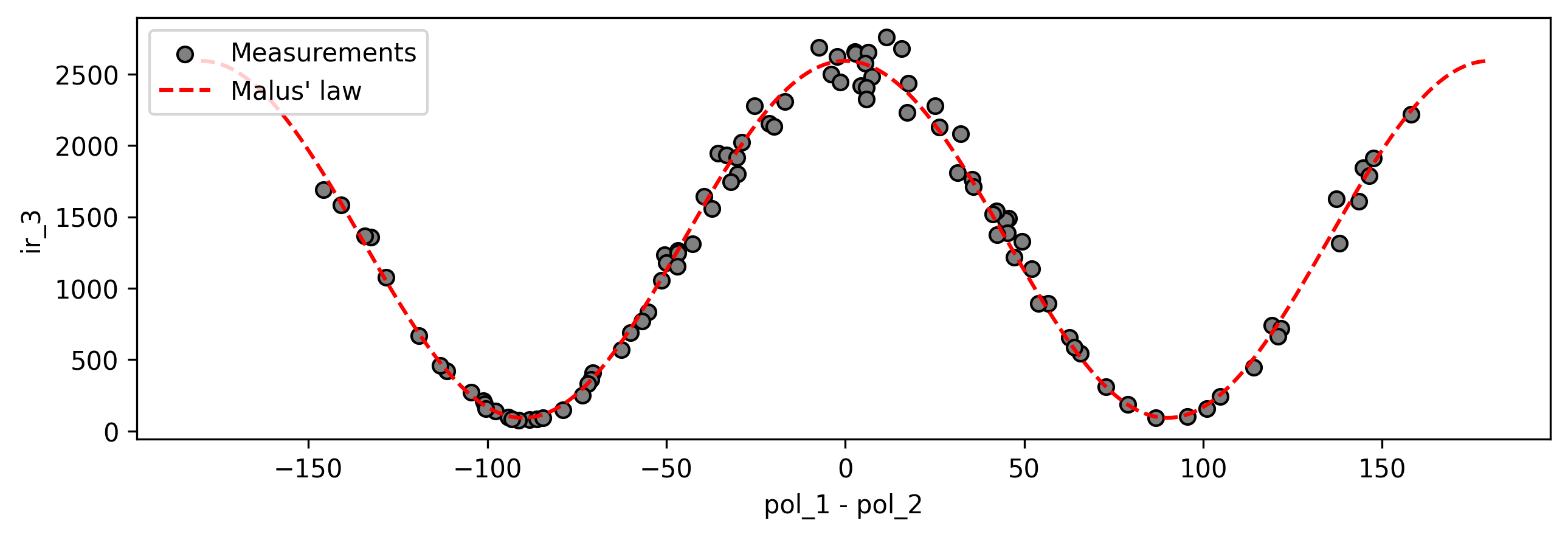
Let's submit an experiment to visualize the effect of [Malus' law of polarization](https://en.wikipedia.org/wiki/Polarizer#Malus's_law_and_other_properties) in the [Light Tunnel Mk2](/the-chambers/light-tunnel-mk2.md). You can learn more about this effect in [Appendix IV.2.1](https://arxiv.org/pdf/2404.11341#page=31.71) of the original chambers [paper](https://www.nature.com/articles/s42256-024-00964-x).
For our experiment, we will keep the light source fixed at a constant brightness and take measurements for random polarizer positions.
```python
import causalchamber.lab as lab
import numpy.random as random
# Connect to the remote lab
rlab = lab.Lab(credentials_file='.credentials')
# Start a new experiment protocol
experiment = rlab.new_experiment(chamber_id = 'lt-demo-ch4lu', config = 'standard')
# Add instructions
[experiment.set(color, 255) for color in ['red', 'green', 'blue']]
for i in range(100):
# Set polarizers to random positions
experiment.set('pol_1', random.uniform(-90,90))
experiment.set('pol_2', random.uniform(-90,90))
# Take one measurement
experiment.measure(n=1)
# Submit the experiment
experiment_id = experiment.submit(tag='demo-malus')
```
You can monitor the experiment with `rlab.get_experiments()` and load the measurements into a pandas dataframe once it's done.
```python
data = rlab.download_data(experiment_id, root='/tmp')
df = data.dataframe
```
Now we can plot the light intensity after both polarizers vs. their relative angle (see `ir_3`, `pol_1`, `pol_2` in the [configuration docs](https://cchamber-box.s3.eu-central-2.amazonaws.com/config_doc_lt_mk2_standard.pdf)). For comparison, we show the prediction from [Malus' law](https://arxiv.org/pdf/2404.11341#page=31.71) in red.
```python
import matplotlib.pyplot as plt
import numpy as np
plt.figure(figsize=(8,3))
# Plot light intensity vs. relative polarizer angle
plt.scatter(df.pol_1 - df.pol_2, df.ir_3, c='gray', edgecolor='black')
# Plot Malus' law
x = np.arange(-180,180)
plt.plot(x, 92.30 + 2499.65 * np.cos(np.radians(x))**2, 'r--')
plt.legend(['Measurements', "Malus' law"], loc='upper left')
plt.xlabel('pol_1 - pol_2'); plt.ylabel('ir_3')
```
### Generating instructions from a pandas dataframe
To make things easier when creating experiments, you can also generate instructions from a pandas dataframe by calling [`experiment.from_df(...)`](broken://spaces/n3swfeDaIv3d3HxHu2q6) . For example, the above experiment can be rewritten as
```python
import causalchamber.lab as lab
import numpy.random as random
import pandas as pd
# Connect to the remote lab
rlab = lab.Lab(credentials_file='.credentials')
# Start a new experiment protocol
experiment = rlab.new_experiment(chamber_id = 'lt-demo-ch4lu', config = 'standard')
# Add instructions
[experiment.set(color, 255) for color in ['red', 'green', 'blue']]
df = pd.DataFrame({
'pol_1': random.uniform(-90, 90, size=100),
'pol_2': random.uniform(-90, 90, size=100)
})
experiment.from_df(df)
# Submit the experiment
experiment_id = experiment.submit(tag='demo-malus')
```
You can find more details about how the function works (e.g., to customize the number of measurements per row) in its [docstring](https://github.com/juangamella/causal-chamber-package/blob/1f1579ce4933c5a1ee3b5561f2a638aefc2ea215/causalchamber/lab/chamber.py#L590).